
Tag Archives: Typography

INTRO TO TYPOGRAPHY – SEARCHING FOR TYPE 2024

Today we will begin exploring typography, which is the art of arranging type to make language visible. To fully understand typography, we will explore many different aspects of type, including the history of typography and how it has evolved throughout different time periods and developed in the digital age. In today’s assignment we will discover and investigate four of the major categories of type.


Objective:

  • I can identify and explain the four major categories of typefaces by creating a document that displays and defines all four categories so I can better understand Typography as a technique for communication and as an art form.

Vocabulary Words:

  • Type
  • Typeface
  • Font
  • Serif
  • Sans Serif
  • Script
  • Ornamental/Decorative/Display
  • Typography
  • Typeface versus Font
  • Digital Typography
  • Font Foundries
  • Free vs. Paid Fonts
  • Online Typeface Resources

Links:

Wikipedia – Typography
https://en.wikipedia.org/wiki/Typography

Wikipedia – Typeface
https://en.wikipedia.org/wiki/Typeface

Wikipedia – Font
https://en.wikipedia.org/wiki/Font

Fonts.com – Type Classifications
https://www.fonts.com/content/learning/fontology/level-1/type-anatomy/type-classifications

Dafont.com – Free Fonts
https://www.dafont.com/

Topics Discussed:

  • Serif Fonts
  • Sans Serif Fonts
  • Script Fonts
  • Ornamental/Decorative/Display Fonts
  • Online Typeface Resources

Assignment:

  1. Using the web addresses above, find the definitions for each of the following:
    serif type
    sans serif type
    script type
    ornamental/display type
  2. Use InDesign to create a document that introduces and explains each of the above items.
  3. Use a default 8.5″ x 11″ Letter size page.
  4. Include a large headline for each category, and a one sentence explanation of the definition.
  5. Include a sample image to show me what each of the four type categories looks like.
  6. Try to put all of the four on one page!
  7. When you are finished, Export the file as a High Quality Print format .PDF (File -> Adobe PDF Presets -> High Quality Print) and save the resulting .PDF file to the Google Classroom page for this assignment.

Example:
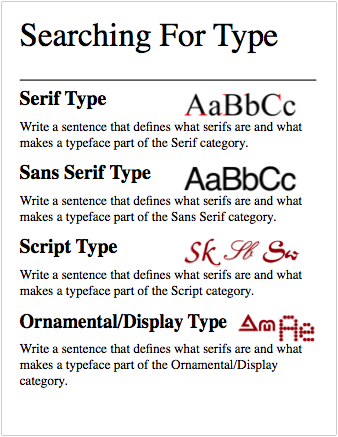
Searching For Type Example

sftexample

Assigned: September 23rd, 2024
Teacher Pacing Due Date: September 24th, 2024

Type Week: Making Your Own Typeface With Calligraphr

Objective:

I can use online tools and my understanding of typographic principles to produce my own typeface.

Web Links:
Calligraphr.com

Topics Discussed:

  • Typography
  • Font

Assignment:

Today we are going to wrap up our exploration of Typography through its ultimate expression: Making our own Typeface!

As we saw in the movie Helvetica that we watched last week, Type can be created through many methods, including carving individual letters out of steel blocks, printing letters on clear plastic strips to stick down on pages, or our preferred method: through digital design, using applications specifically built for this purpose. Today, we are going to explore one of those applications, one that is purpose-built to make creating typefaces easy enough that anyone can do it!

To begin, visit the Calligraphr.com website. You will need to create your own login to proceed – It is recommended that use your haydenmagnet.org email address.

  1. Create a template and print it out. (A pre-built template will be provided in class, but you are welcome to build your own custom templates!)
  2. Fill out the template. You can do this in many different ways:
    • You can simply write the appropriate letter in the box with your favorite pencil, pen or marker
    • You can draw the letters on a seperate piece of paper, then cut them out and paste them in the provided spaces.
    • You can cut out letters from other documents and paste them on the template in the provided spaces to create an eclectic “ransom note” style font!
  3. When you have all the spaces filled, use a scanner, digital camera or a smartphone to take a screen capture of your filled-out template.
  4. On the fonts page, choose the Upload Template option and upload your image file.
  5. Click on Build Font and watch the magic happen!
  6. You now have a custom font that you can install and use for any of your design projects!

Assigned: February 20th, 2024
Teacher Pacing Due Date: February 20th, 2024