Tag Archives: Typography

Intro to Typography – Searching for Type 2016

Today we will begin exploring typography, which is the art of arranging type to make language visible. To fully understand typography, we will explore many different aspects of type, including the history of typography and how it has evolved throughout different time periods and developed in the digital age.
In today’s assignment we will discover and investigate four of the major categories of type


Objective:

  • I can identify and explain the four major categories of typefaces.
  • I can define Typography as a technique for communication and as an art form.
  • I can define Typeface and Font and recognize the difference between the two.
  • I can identify the categories of fonts and how they are best used.

Vocabulary Words:

  • Type
  • Typeface
  • Font
  • Serif
  • Sans Serif
  • Script
  • Ornamental/Decorative/Display
  • Typography
  • Typeface versus Font
  • Digital Typography
  • Font Foundries
  • Free vs. Paid Fonts
  • Online Typeface Resources
Links:
 
Paratype – Typeface Classification
https://www.paratype.com/help/class/
Desktop Publishing at About.com – Typeface Classifications
https://desktoppub.about.com/od/typeclassification/Typeface_Classifications.htm
Dafont.com – Free Fonts
https://www.dafont.com/
Topics Discussed:
  • Serif Fonts
  • Sans Serif Fonts
  • Script Fonts
  • Ornamental/Decorative/Display Fonts
  • Online Typeface Resources

Assignment:

  1. Using the web addresses above, find the definitions for each of the following:
    serif type
    sans serif type
    script type
    ornamental/display type
  2. Use InDesign to create a document that explains each of the above items.
  3. Use a default 51p0 x 66p0 Letter size page.
  4. Include a large headline for each category, and a one sentence explanation of the definition.
  5. Include a sample image to show me what each of the four type categories looks like.
  6. Try to put all of the four on one page!
  7. When you are finished, hand in your completed InDesign document and all the sample images you used to the Google Classroom page for this assignment.

Example:
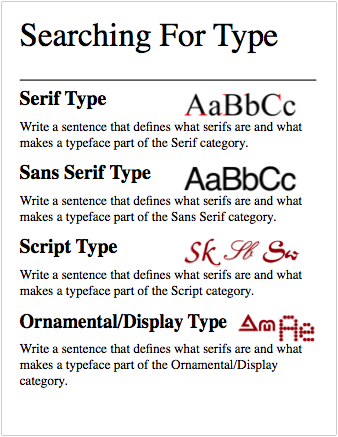
Searching For Type Example

sftexample

Assigned: September 22nd, 2016
Teacher Pacing Due Date: September 23rd, 2016
Fall 2015 – Intro to Typography – 8 – Typeface Choices (I am a…)

As a designer, good (or bad) design is all about the choices you make. One of the most important decisions you’ll make is what typefaces you will use to produce your headlines, subheadings and body text. Today we will practice making these choices.


Objective:

  • I can select the most appropriate typeface available for a given design scenario.

Vocabulary Words:

  • Type
  • Typeface
  • Font
  • Serif
  • Sans Serif
  • Script
  • Ornamental/Decorative/Display
Links:
 
None.
Topics Discussed:
  • Serif Fonts
  • Sans Serif Fonts
  • Script Fonts
  • Ornamental/Decorative/Display Fonts

Assignment:

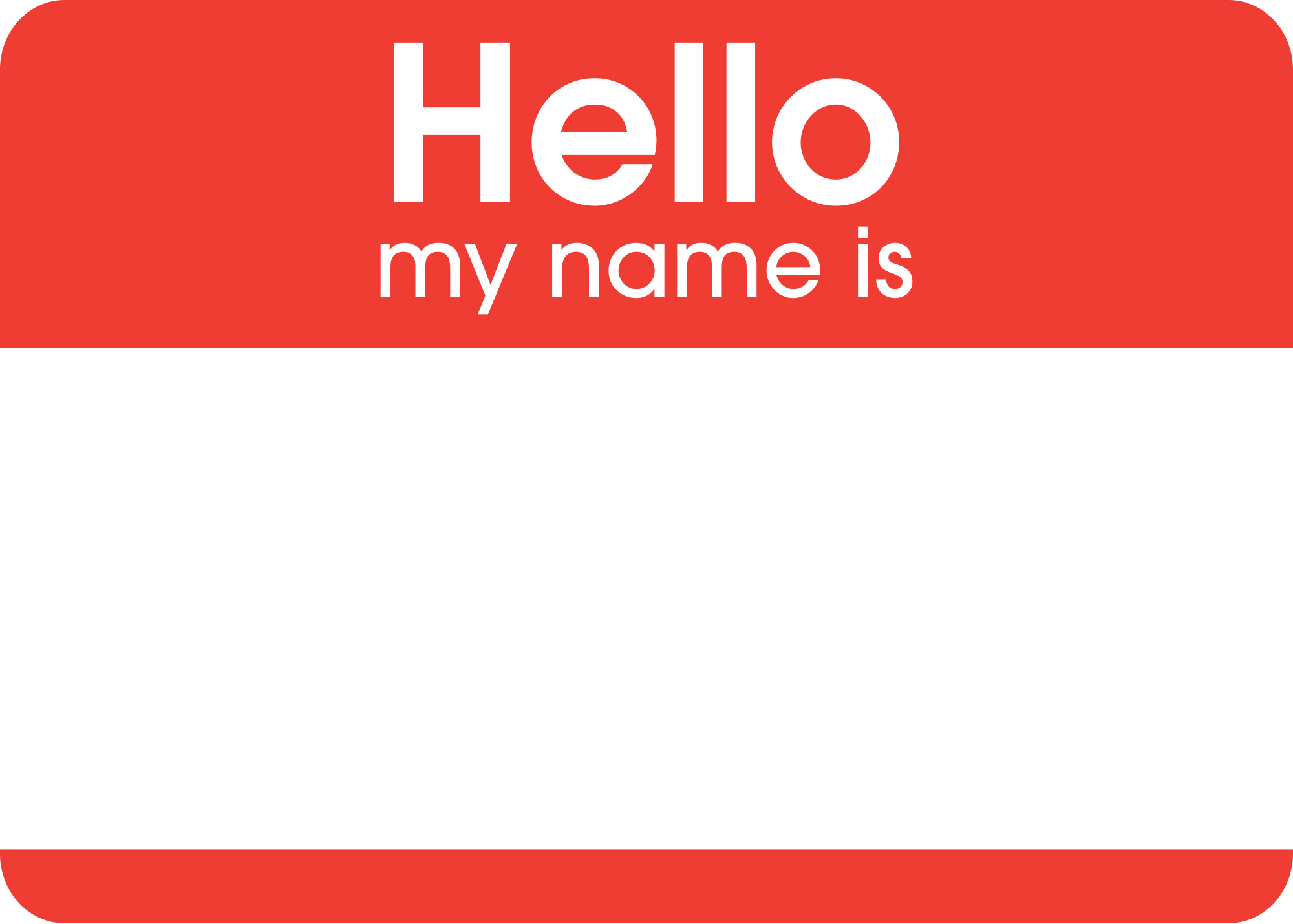
You’ve seen those “Hello! My Name Is…” badges, right?

2000px-Hello_my_name_is_sticker.svg

They’re pretty generic. They use generic fonts and simple design to make them easy for anybody to recognize and use. What if we could personalize a Hello badge to fit our own personalities? Today, we’re going to use what we’ve learned about typefaces and the Principles of Design to redesign a Hello badge to reflect different aspects of our personalities. To do this, you will need to make important choices about how you arrange the page, what typefaces you would like to use, and what colors you would like to use to effectively communicate a message about who you are.

  1. Create a new InDesign document with the default size, but  landscape orientation.
  2. Use the Pages palette to create four additional pages, for a total of five pages.
  3. Take a few minutes to think of five words that describe what you are. For example, you  might use words like “student, teenager, athlete, musician, gamer, superstar, etc.” This will work best if you think of your own, so try to think of five nouns that best represent you.
  4. On each page, type the words: “Hello” and “My name is”. Select a typeface and font size that makes these words easy to read, and make “Hello” slightly larger than “My name is”.
  5. In very large letters, type your name. Select an appropriate font for your name, and try to make your name fill the page without going over the pink borders.
  6. Finally, near the bottom of the page, type the words “and I am a _______.” Fill in the blank with one of the five descriptive nouns that you thought up for yourself.
  7. Fill in the background with a color, by creating a rectangle the size of the entire page and placing it on a layer below your main text layer.
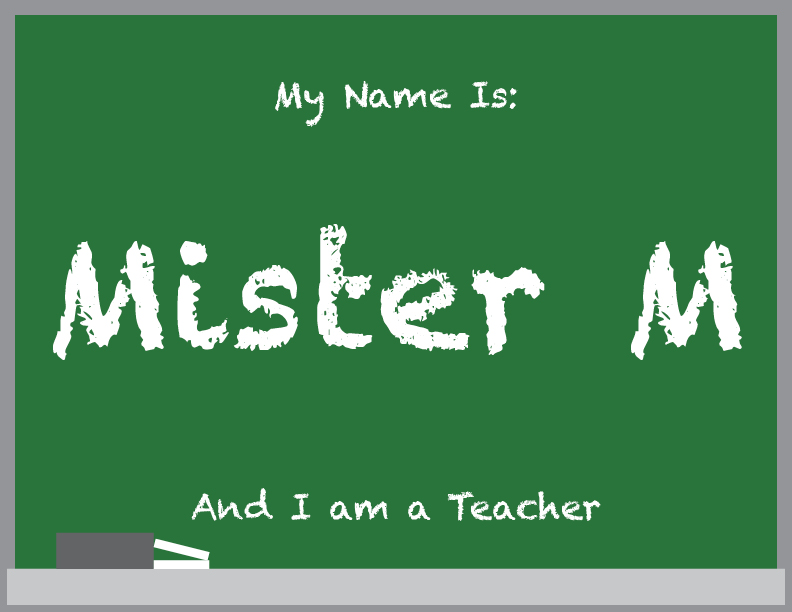
  8. Use typefaces that look appropriate for the descriptive noun that you have chosen. For example, since I’m a teacher, I used a chalkboard font called “Chalkduster”, since chalkboards are commonly associated with teaching. I also changed the background color to a chalkboard green to give the idea of a chalkboard.
  9. mmchalkboard
  10. Add any graphics or drawings that you would like to include to make your design more visually appealing. For example, I added the grey rectangle and the thin white rectangles on the bottom of the page to represent a chalkboard eraser and two pieces of chalk.
  11. Repeat this process on the following four pages for the remaining four words you have chosen.
  12. When you have all five pages finished, save the document as “Your name – Typeface Choices” and place a copy in the appropriate folder in StudentsTempFiles by Thursday, October 1st.
  13. Don’t forget: Thursday, October 1st is the deadline for all late or incomplete work. After October 1st, no late work will be accepted and grades will be finalized, so make sure your work gets turned in before the end of the day on October 1st.

Assigned: September 25th, 2015
Due Date: October 1st, 2015