
Tag Archives: Term 3

ILLUSTRATOR WEEK 2, DAY 1 – TABLET TRACING PRACTICE

Objective:

Students will be able to use the Wacom Tablet to trace and color hand-drawn artwork that was converted to digital artwork using a scanner so that they can more easily apply line art and color to their hand-drawn or digitally produced art.

Video Links:
https://helpx.adobe.com/illustrator/how-to/illustrator-live-paint.html?set=illustrator–fundamentals–apply-color

Topics Discussed:

  • File > Place
  • Live Paint
  • Gap Options
  • Swatches Panel
  • Starting a new document in Illustrator using the Welcome screen.
  • Adjusting settings in the New Document dialog box.
  • Establishing multiple artboards.

Assignment:

Create a new Web artboard to complete this activity.

Follow along with the in-class tutorial to learn how to use the Wacom Tablet and brush selections to digitally “ink” the outlines of a digitized hand-drawn image imported into Illustrator, as well as a technique for recoloring vector graphics called Live Paint.

  1. After you have watched the tutorial, import the Robot Sketch 01.psd file below on to your first artboard using File > Place. Lock the layer that you have placed the sketch on, and create a new Layer 2 to begin drawing.
  2. Use the Wacom Tablet and the brushes palette to outline the edges of the sketched artwork. Try to recreate the original lines, and use the pressure sensitive brushes to try and match the line thickness of the original pencil sketch lines.
  3. Next, follow the steps in the tutorial to activate Live Paint, and use Live Paint to color in the robot.
  4. DO NOT use the Paint Brush, the Blob Brush or any other drawing tool to color in the robot. Use Live Paint only.
  5. Be sure to pay attention to the Gap Options mentioned in the tutorial, so your Live Paint doesn’t bleed out all over your artboard.
  6. When the robot is successfully colored in, save your document. We will continue working on this document when we return on Tuesday of next week.

Sample Image File Link:
Robot Sketch 01.psd

Assigned: January 27th, 2023
Teacher Pacing Due Date: January 31st, 2023
ILLUSTRATOR WEEK 1 – DAY 4: THE PEN TOOL

Objective:

Students will be able create and modify paths and shapes by using the Pen Tool in Illustrator so they can begin to master the powerful capabilities of this versatile tool.

Video Link:

https://helpx.adobe.com/illustrator/how-to/new-pen-tool.html?set=illustrator–fundamentals–create-artwork

Activity Link:

The Bézier Game

Topics Discussed:

  • Pen tool
  • Modify anchor points and handles
  • Convert corner points
  • Smooth curves at anchor points.

Assignment:

Click the Activity Link to play the Pen Tool Game! Follow the tutorial, and practice using the Pen Tool to produce shapes with Bézier curves! There are ten levels (not including the tutorial levels). Take a screencap (Command+Shift+4 and draw a rectangle around the part of the screen you want to capture) of your highest level completed and place it on the lower left artboard. The first to complete all ten levels each class gets a prize!

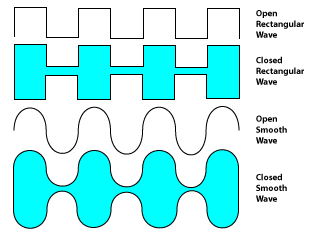
Once you’re comfortable with the pen tool, demonstrate the usage of the Pen tool on the lower right artboard by drawing an open rectangular wave, a closed rectangular wave shape, an open smooth wave and a closed smooth wave shape. Apply a colored fill to the closed waves. When you are finished, it should look something like this:

Illustrator Example Week 1 Artboard 4

Save the file. Make sure you have all of the required activities from this week on each of the four artboards, and turn this entire document in to the “Illustrator Week 1” assignment post on our Google Classroom page by the end of the day on Friday.

Assigned: January 17th, 2023
Teacher Pacing Due Date: January 18th, 2023