Tag Archives: Term 3

ADOBE ILLUSTRATOR – INTRODUCTION TO ILLUSTRATOR – SPRING 2026

Happy New Year, and Welcome to Adobe Illustrator!

Adobe Illustrator is the industry standard vector graphics drawing program, and my personal favorite application in the Adobe Suite. We are going to spend the next couple of weeks getting comfortable with the program and exploring its capabilities. We are also going to explore color theory, symbolism and expressive typography in the weeks to come, so prepare yourself with the following week’s exercises!

Let’s get started with a quick test to see what you already know about Illustrator, and a little bit about what you have to discover about the beauty and power of vector graphics.

Then we’ll begin our journey by exploring the Illustrator workspace, and learning about some of the new tools, palettes and control panels that are unique to vector art rendering.

Objective:

I can show what I already know about Adobe Illustrator by taking the Illustrator pre-test.

Topics Discussed:

  • Adobe Illustrator

Assignment:

  • Visit our Google Classroom and take the Illustrator Pre-Test.
  • Remember, this is a pre-test, so do your best to answer all the questions, but don’t worry if you don’t have all the answers. That’s what you’re here to learn.
  • Submit your test answers before the end of the class period today.
  • Make sure you mark the assignment as “Done” when you finish to confirm that you took the test.

Assigned: January 5th, 2026
Teacher Pacing Due Date: January 6th, 2025
Intro to Typography – Typeface Choices 2025 (Hello, My Name Is…)

As a designer, good (or bad) design is all about the choices you make. One of the most important decisions you’ll make is what typefaces you will use to produce your headlines, subheadings and body text.   Strong typeface choices set the appropriate tone for your intended message, while inappropriate typeface choices send conflicting messages and can disrupt the message you intended to communicate.   Today we will practice making strong typeface choices.

Objective:

I can select the most appropriate typeface available for a given design scenario.

Vocabulary Words:

  • Type
  • Typeface
  • Font
  • Serif
  • Sans Serif
  • Script
  • Ornamental/Decorative/Display

Links:

None.

Topics Discussed:

  • Serif Fonts
  • Sans Serif Fonts
  • Script Fonts
  • Ornamental/Decorative/Display Fonts

Assignment:

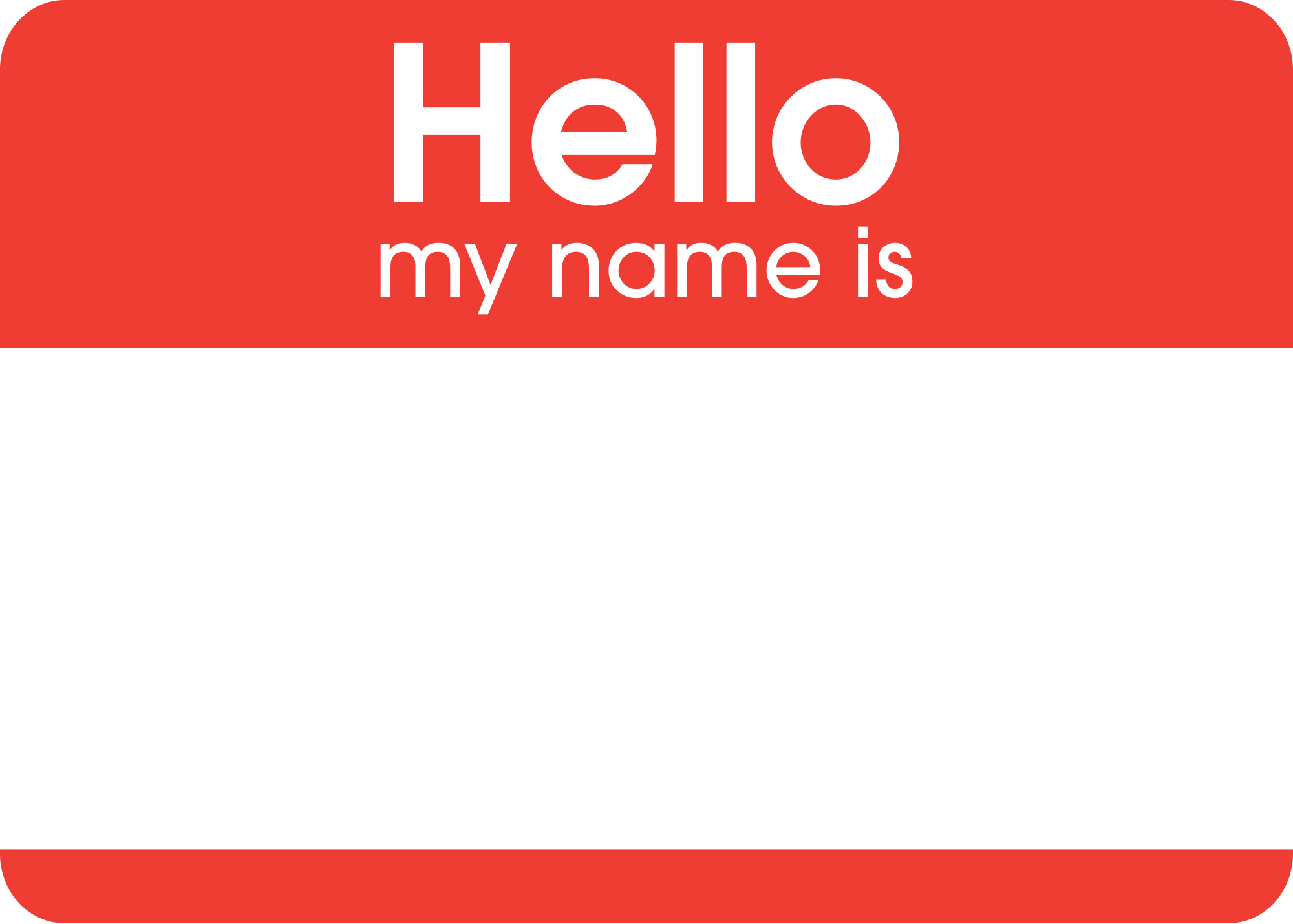
You’ve seen those “Hello! My Name Is…” badges, right?

2000px-Hello_my_name_is_sticker.svg

They’re pretty generic. They use generic fonts and simple design to make them easy for anybody to recognize and use. What if we could personalize a Hello badge to fit our own personalities? Today, we’re going to use what we’ve learned about Typefaces and the Principles of Design to redesign a Hello badge to reflect different aspects of our personalities. To do this, you will need to make important choices about how you arrange the page, what typefaces you would like to use, and what colors you would like to use to effectively communicate a message about who you are.

  • Create a new Illustrator Web document, with four artboards and landscape orientation (wide, not tall).
  • Take a few minutes to think of four words that describe you. For example, you  might use words like “student, artist, athlete, musician, gamer, superstar, etc.” This will work best if you think of your own, so try to think of four nouns that best represent you.
  • On each page, create a headline containing the words: “Hello” and “My name is”. Select a typeface and font size that makes these words easy to read, and make “Hello” slightly larger than “My name is”.
  • In a single, very large headline, type your name. Select a font that is appropriate for your name, and try to make your name fill the page without going over the Artboard margins.
  • Finally, near the bottom of the page, type the words “and I am a _______.” Fill in the blank with one of the four descriptive nouns that you thought up for yourself.
  • Fill in the background with a color, by creating a rectangle the size of the entire page and placing it on a layer below your main text layer. Lock this layer to protect your background.
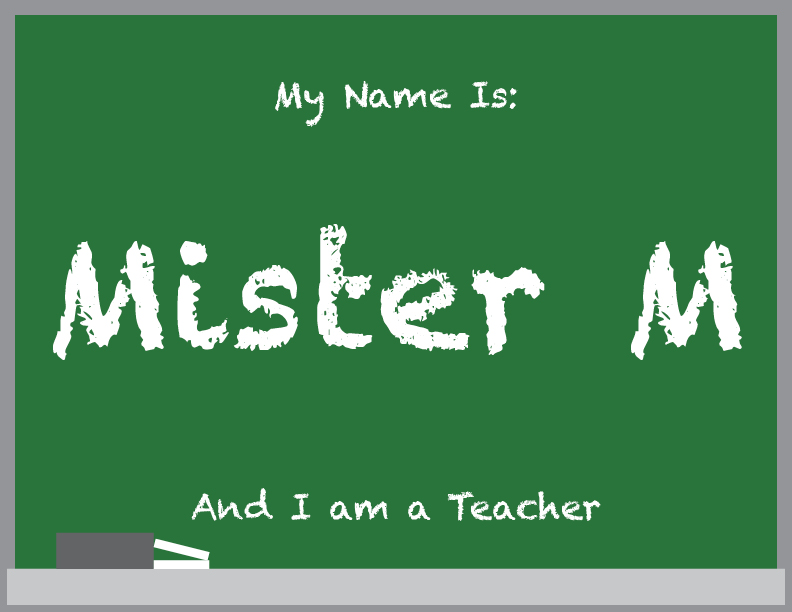
  • Your goal with this assignment is to choose typefaces and page design elements that look appropriate for the descriptive noun that you have chosen. For example, since I’m a teacher, I used a chalkboard font called “Chalkduster”, since chalkboards are commonly associated with teaching. I also changed the background color to a chalkboard green to give the idea of a chalkboard.
mmchalkboard
  • Add any graphics or drawings that you would like to include to make your design more visually appealing. For example, I added the grey rectangle and the thin white rectangles on the bottom of the page to represent a chalkboard eraser and two pieces of chalk.
  • Repeat this process on the remaining three Artboards for the remaining three words you have chosen. At least one of the Artboards should use the custom typeface that you created yesterday on the Calligraphr website.
  • When you have all four Artboards finished, save the document as “Your name – Typeface Choices”, and upload the Illustrator document to the Google Classroom assignment post by the end of the day on Thursday, March 6th.

Assigned: March 4th, 2025
Due Date: March 6th, 2025