Tag Archives: Term 2

Adobe Photoshop – Color Splash

Objective:

I can use clipping masks and adjustment layers to make a selected portion of a color image appear black-and-white.
 
Video Link:
Photoshop CS6 Selective Colour / Colour Splash Effect


Topics Discussed:

  • Magic Wand
  • Tolerance
  • Contiguous Selection
  • Black & White Adjustment Layer
  • Clipping Mask
Assignment:

Open the “bouquet.jpg” file below in Photoshop. Use the Magic Wand selection technique demonstrated in class to select the red elements in the photograph (the flowers and the berries). Inverse the selection and apply a Black & White Adjustment Layer to turn everything except the flowers black and white. You may also apply a Hue/Saturation Adjustment Layer to change the color of the flowers, or a Brightness/Contrast Adjustment Layer to lighten the flowers. Save the file as “YOURNAME bouquet.psd” and place a copy in the “Color Splash” assignment post on our Google Classroom page.
bouquet

Assigned: October 25th, 2016
Due Date: October 27th, 2016

Intro to Photoshop 2016 – Retouching Blemishes

Objective:

I can use the image repair tools in Adobe Photoshop to repair portions of an image.
 
Video Link:

https://helpx.adobe.com/photoshop/how-to/fix-flaws-retouch-photos.html

Topics Discussed:
  • Spot Repair Brush Tool
  • Repair Brush Tool
  • Patch Tool
  • Clone Source Panel
  • History Panel

Assignment: 

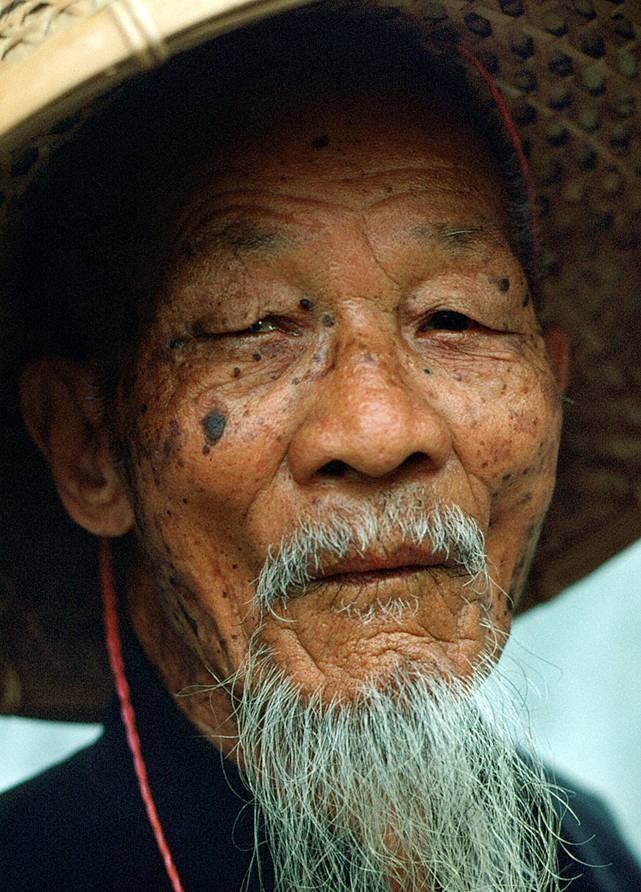
Find the picture of the old man below. Click on him to view the full size image and drag the picture to your Desktop. Open the image in Photoshop, and use the Spot Repair Brush Tool, the Repair Brush Tool, and the Patch Tool discussed in class to remove the unsightly moles and blemishes from the old man’s face, and fix his bad eye using the Repair Brush Tool! Restore his youth! Save your file as “YOURNAME Bluebeard.jpg” and place a copy in today’s post on the Google Classroom page.


Bluebeard.jpg

Click here to view and save the full-size image!

Assigned: October 20th, 2016
Teacher Pacing Due Date: October 21st, 2016